External Files and Folders
In addition to the built-in clients for (S)FTP, WebDAV, and Dropbox, you can also use the iOS document picker to open files and folders from a large number of third-party file providers.

Opening Files
Tap Open… or press Cmd-O using an external keyboard to open files with the iOS document picker.
Select a location on the left and tap a file on the right to open it in Textastic.
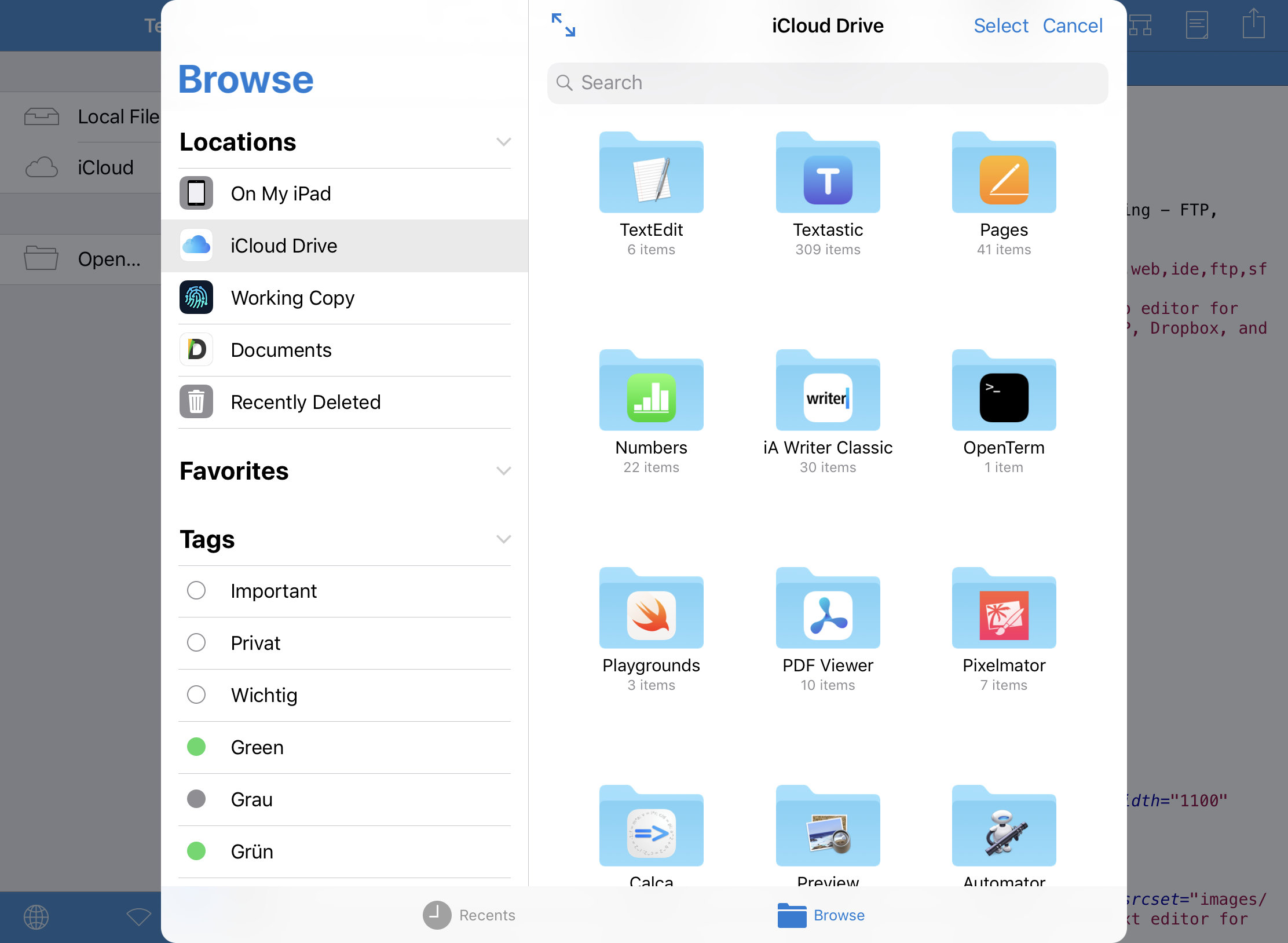
Files opened this way are not imported. Instead, they are opened in place. Changes you make to the files are saved directly to their original location.
Web Preview Limitations
When you open a single file using Open…, Textastic only receives access to that file. It does not get access to the surrounding folder.
Because of this, the web preview cannot load files referenced with relative paths (for example CSS, JavaScript, or images in the same project). This is a restriction imposed by the iOS security sandbox: the document picker only grants access to the selected file.
To preview a website correctly, first download the project using one of the built-in clients for (S)FTP, WebDAV, or Dropbox and preview the files from the Local Files or iCloud locations in Textastic.
Alternatively, add the project as an external folder (if supported by the file provider) so Textastic can access all files.
Adding External Folders
External folders give Textastic access to all files in the selected folder, allowing features like the web preview to load linked resources.
Opening folders is currently supported by the following file providers and apps:
folders in iCloud Drive
the
On my iPadandOn my iPhonelocationsDropbox
Working Copy (Git repositories)
the Secure ShellFish app (SFTP servers)
the S3 Files app (S3-compatible servers)
the FTP Files app (FTP, FTPS, and SFTP)
the Source Files app (to use Git as a file system)
Note
Some file provider apps (like Google Drive and Microsoft OneDrive) do not provide folder access through the iOS document picker. Only the provider app itself can add this capability. You can still use the Open… command (see above) to open individual files from these file providers.
Tap Add External Folder… to add a folder using the iOS document picker.
Navigate to the folder you want to add.
Tap Open.
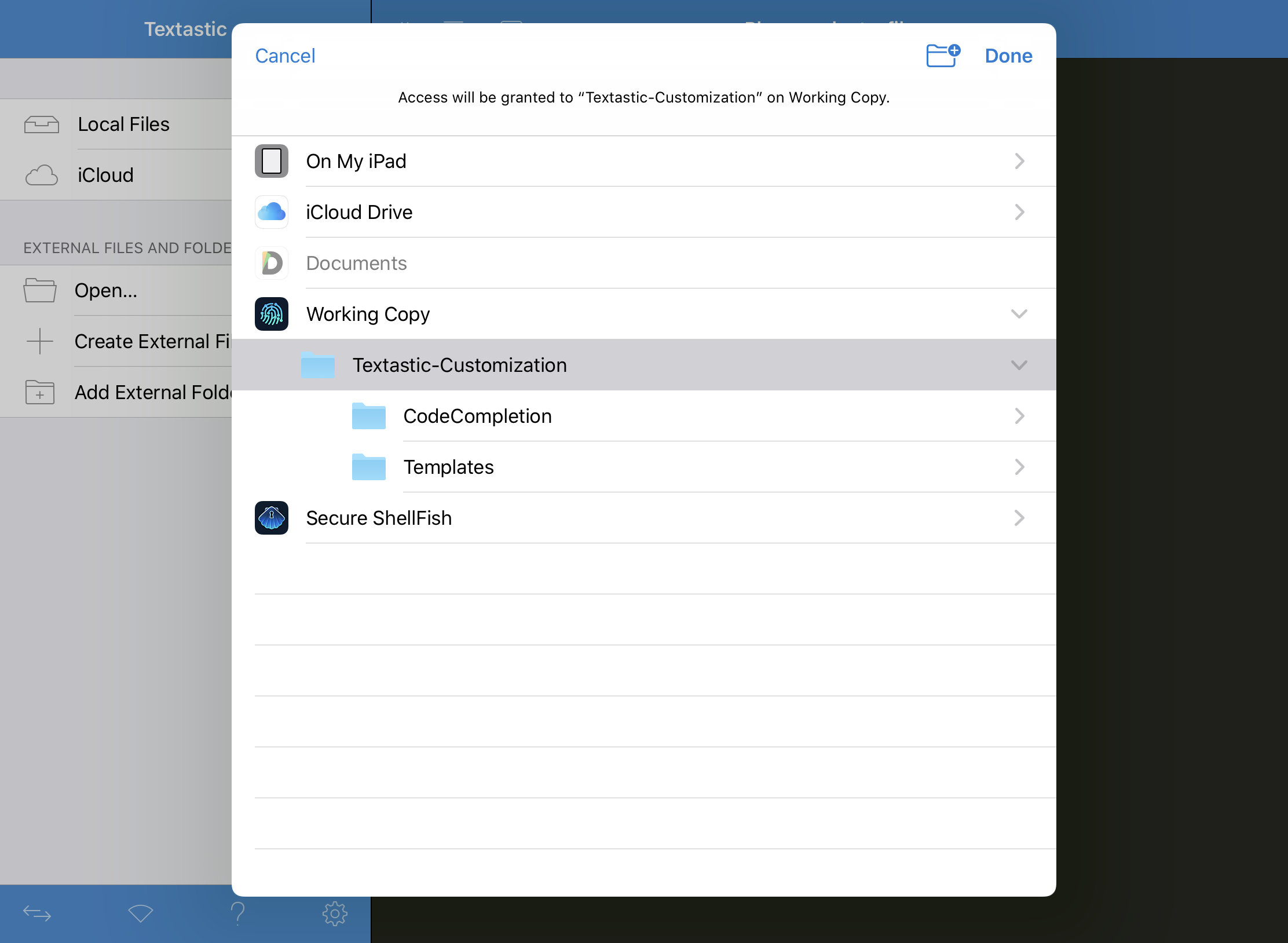
The selected folders will be opened as external folders and behave the same as the Local Files and iCloud locations.

Renaming and Removing External Folders
Open the context menu by tapping and holding or right-clicking an external folder and choose Rename:
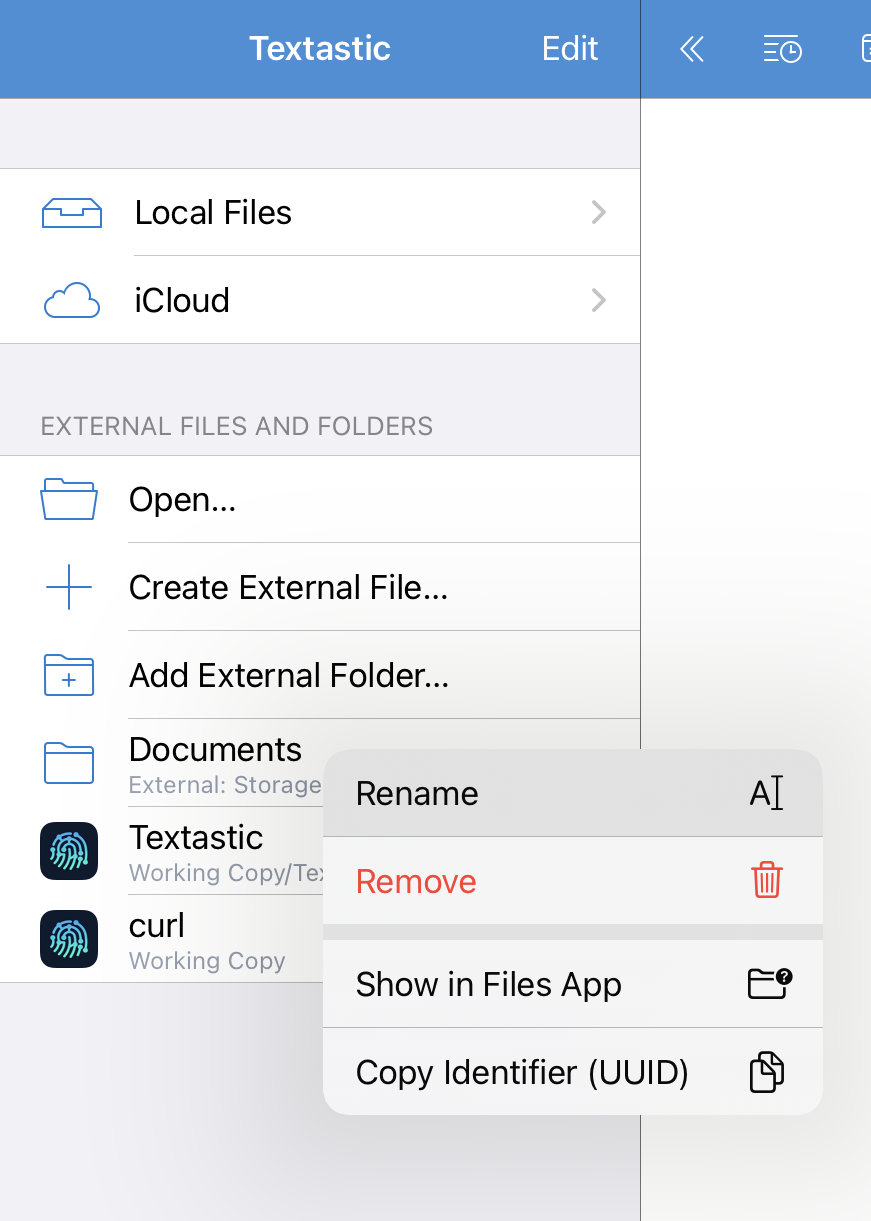
You can also Remove an external folder from the context menu, or use the Edit button or a swipe gesture to remove external folders.
Add Third-Party File Providers
By default, the Files app only allows you to open files from iCloud Drive and the “On my iPad/iPhone” location. However, there are many third-party apps with file providers that integrate with the Files app:
Microsoft OneDrive
Dropbox
Box
Adobe Creative Cloud
Google Drive
Working Copy (Git client)
Seafile
OwnCloud
… and many more
Follow these steps on your iPad or iPhone:
Download and set up the third-party cloud app.
Open the Files app.
Show the sidebar on iPad or tap Browse on iPhone.
Tap …, then Edit Sidebar (on iPad) or Edit (on iPhone).
Turn on the third-party apps you want to use in the Files app.
Tap Done.
If you don’t see one of your third-party cloud services in the Files app, check with your cloud provider.
See also this Apple support article for instructions on using third-party cloud apps in the Files app.