SFTP, FTPS, and FTP connections
Add an (S)FTP Connection
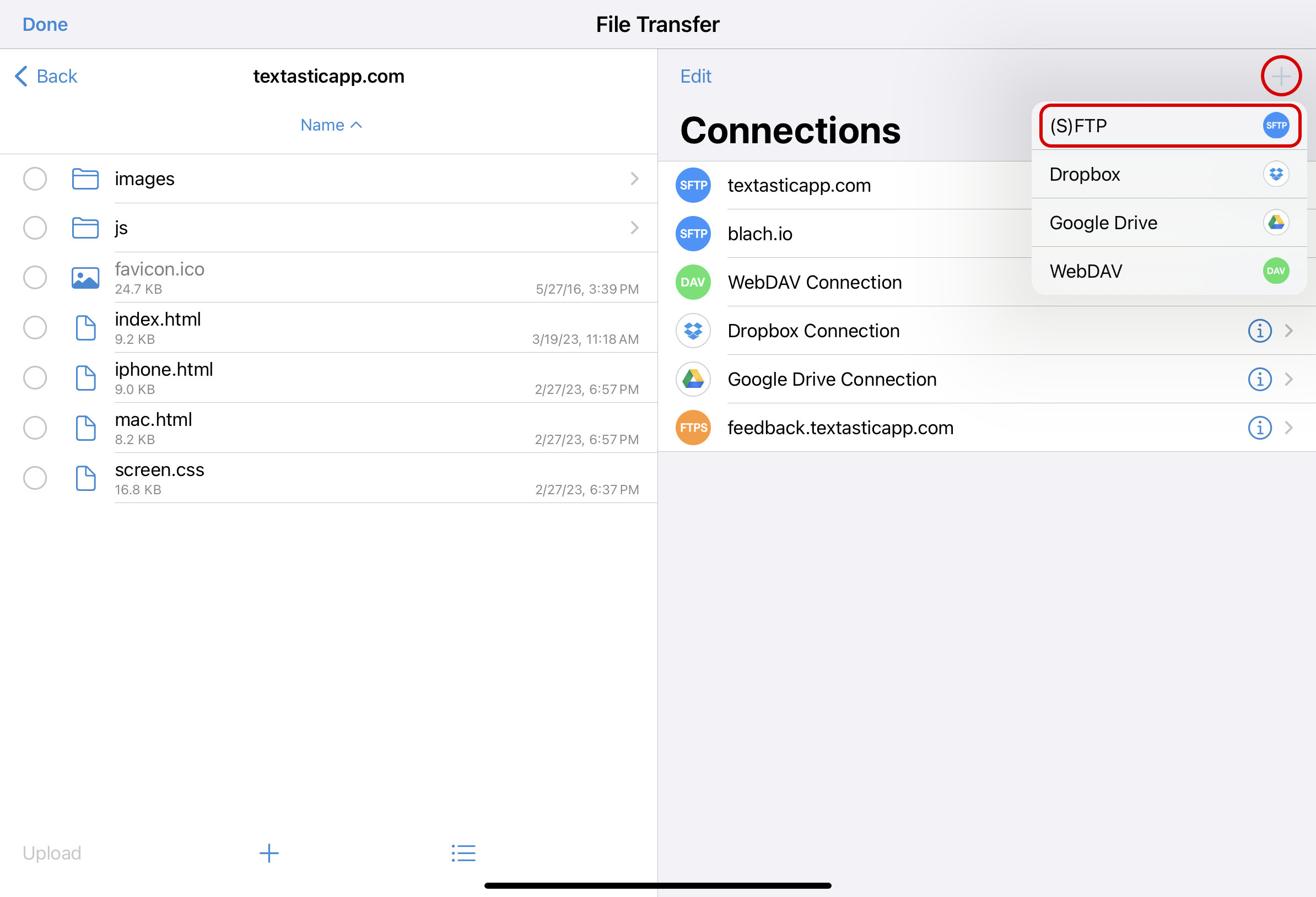
After opening the File Transfer screen, tap the + button and choose (S)FTP to add a new connection.
Configure the Connection
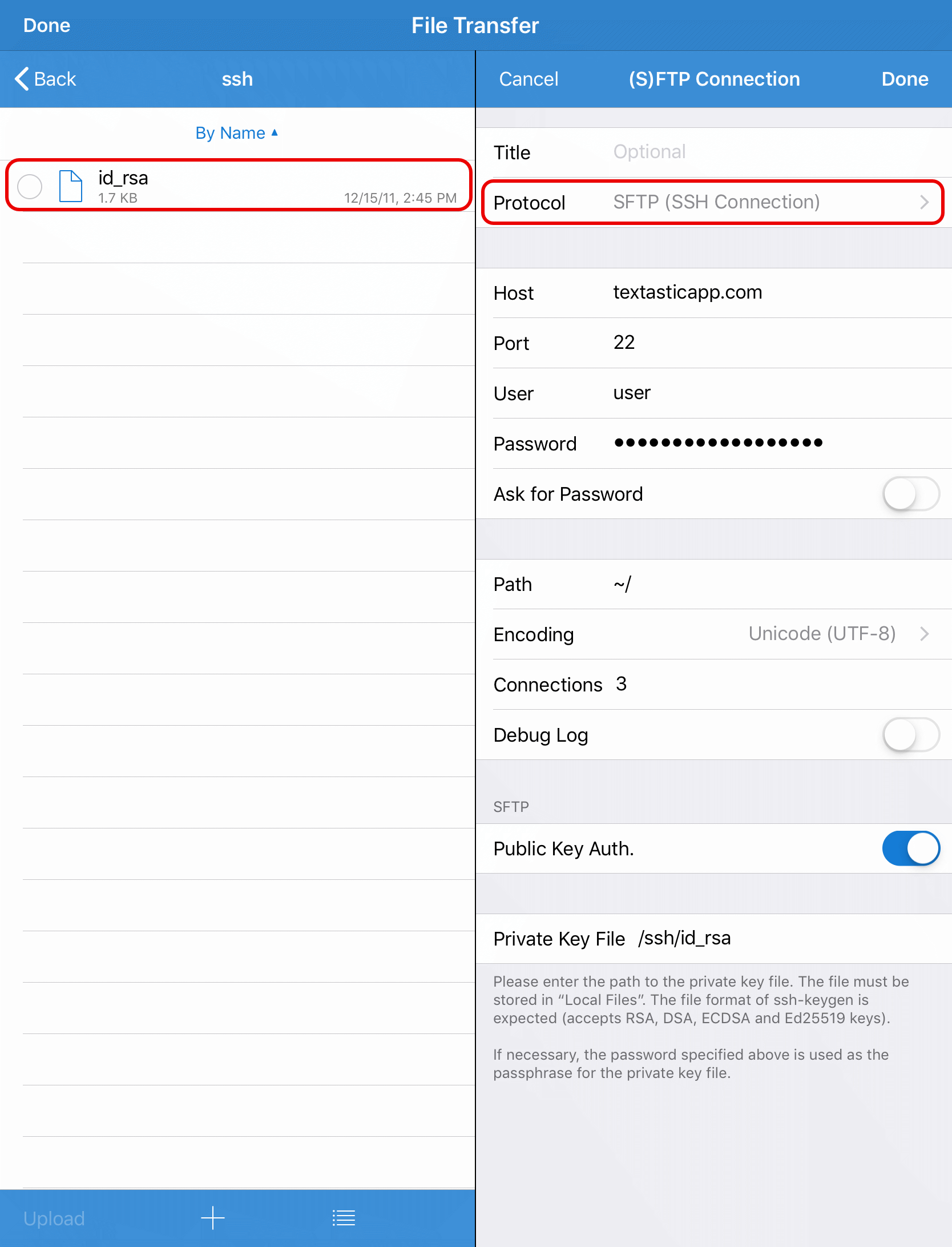
- Protocol
Select the protocol that matches your server configuration. Use SFTP or FTPS whenever possible; use FTP only if no secure option is available.
- SFTP (SSH Connection)
Secure file transfer over SSH. SFTP connections can also be used for SSH Terminal connections. The default port is 22.
- FTPS (Explicit)
FTP over TLS. This is the standard and most common FTPS mode. The default port is 21.
- FTPS (Implicit)
FTP over TLS with encryption from the start of the connection. Use this only if your server specifically requires implicit FTPS. The default port is 990.
- FTP (Unencrypted)
Plain FTP. This does not encrypt your login information or file transfers. Use this only if no secure option is available. The default port is 21.
- Title
The title is the name shown in the connection list. If you leave this empty, Textastic uses the value of the Host field instead. Enter a custom title if you want to show a different name, for example when you have multiple connections to the same host or when the host is an IP address.
- Host
Set this to the server’s host name, such as “example.com”, or to its IP address.
Important
Make sure that the host name does not include a protocol like “ftp://” or a slash “/” after the host name or the connection won’t work.
- Port
Change this if your server uses a different port. SFTP uses port 22 by default, explicit FTPS and FTP use port 21 by default, and implicit FTPS uses port 990 by default.
- User
Enter your user name.
- Password
Enter your password.
- Ask for Password
If you enable this setting, you do not need to enter a password. Instead, Textastic will ask for the password when connecting to the server.
- Path
If you enter a path, Textastic will use this as the root path when connecting to the server.
For SFTP connections, if you do not enter a path, Textastic usually switches to the root directory after establishing the connection. If you want to start at the user’s home directory instead, enter
~/.- Encoding
Keep the default UTF-8 encoding unless your server uses a different character encoding for file names. Textastic uses this setting when sending file names to the server and when decoding file listings.
- Connections
By default, Textastic uses up to three concurrent connections when uploading or downloading multiple files. If your server only allows a single connection, you can set this to “1” instead of “3”.
- Debug Log
Leave this disabled unless you need to troubleshoot a connection problem. See Debugging Connection Problems.
SFTP (SSH Connection)
SFTP (SSH File Transfer Protocol) is a subsystem of SSH (Secure Shell). You can use this type of connection to securely transfer files between your server and Textastic.
See also
For more information, have a look at SSH File Transfer Protocol (Wikipedia).
For SFTP connections, use either password authentication or public key authentication.
User/Password Authentication
Enter your User and Password, and leave Public Key Authentication disabled. If you do not want to store the password in Textastic, enable Ask for Password instead.
Public Key Authentication
For public key authentication, enter your User. If your private key file is protected with a passphrase, enter the passphrase in the Password field. Textastic uses this password to unlock the private key.
- Public Key Authentication
Turn this on to use public key authentication. The Private Key File field then appears.
- Private Key File
Enter the path to the private key file.
Important
The private key file must be stored somewhere in Local Files.
For this to work, you need to transfer the private key file for your SSH account into Textastic. You can do this for example by using Dropbox or the built-in WebDAV server (via Wi-Fi).
You can also use the Files app and move the private key file into a folder in
On My iPad/TextasticorOn My iPhone/Textastic.The standard settings expect a private key file named
id_rsain a subfolder calledsshin Local Files in Textastic (see screenshot).
Note
Textastic supports RSA, DSA, ECDSA, and Ed25519 keys.
Key File Format
Textastic expects the key file to be in the format which is used by the
OpenSSH utility ssh-keygen as well as the OpenSSL command line tool. It supports
the new OpenSSH private key format as well as the PEM format. When using
ssh-keygen, the file is usually called id_rsa while with openssl, it is usually called private.pem.
If you instead have a key in PuTTY’s format (.ppk), you can use PuTTYgen to convert it to OpenSSH/PEM format:
Visit the PuTTY website and download puttygen.exe (on your PC). Open it, and using the File menu, load your .ppk file that you already use, and type in your passphrase. Now go to the Conversions menu and export the key as an OpenSSH key. You can now use the converted key with Textastic.
FTP and FTPS Settings
These settings are available for FTP and FTPS connections.
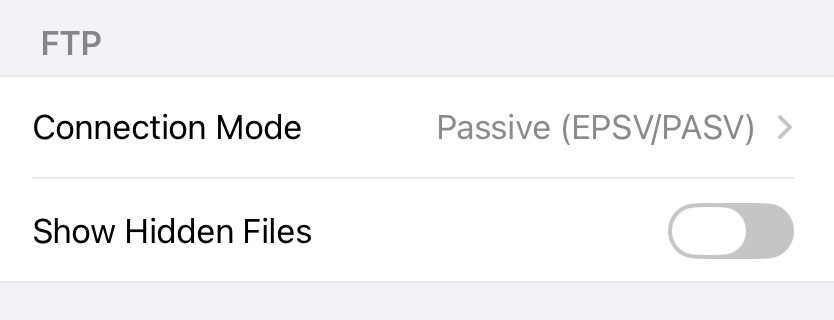
- Connection Mode
If you encounter connection problems with the standard “Passive (EPSV/PASV)” mode, try one of the other modes: “Active (EPRT/PORT)”, “Passive (PASV only)”, or “Active (PORT only)”.
- Show Hidden Files
Enable this setting if you want to see hidden remote files like
.htaccess.
FTPS (FTP over TLS)
FTPS uses FTP with TLS encryption. Choose FTPS (Explicit) unless your server specifically requires FTPS (Implicit).
Explicit FTPS is the current standard, the most common mode, and more widely supported than implicit FTPS. Textastic first opens a standard unencrypted FTP connection and then switches the connection to TLS encryption before logging in.
Implicit FTPS is an older mode where TLS encryption is used immediately when connecting to the server.
FTPS Security Settings
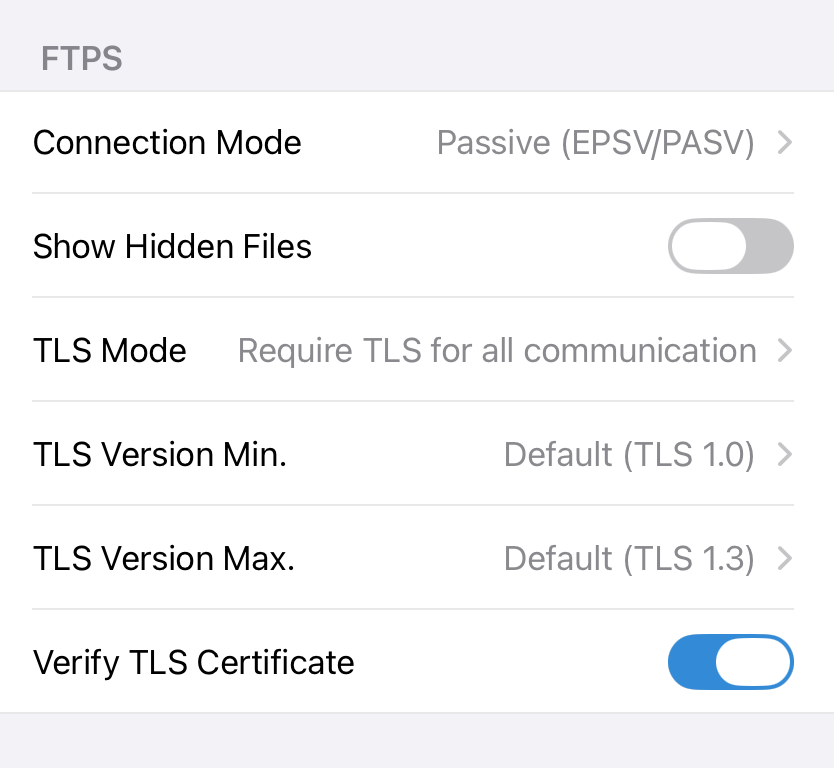
- TLS Mode
Choose how strictly Textastic should use TLS:
- “Require TLS for all communication”
Encrypts both the control connection and file transfers.
- “Require TLS for control connection only”
Encrypts commands and login information, but file transfers are not encrypted. Only use this if your server does not support TLS for file transfers.
- “Try using TLS, not required”
Continues without encryption if TLS is not available. This is insecure and should only be used if your server requires it.
- TLS Version Min. and TLS Version Max.
Usually, you can leave these settings unchanged. Textastic uses them to restrict the TLS versions allowed for the connection.
Increase the minimum TLS version if you want to prevent connections using older TLS versions. Setting the minimum to TLS 1.2 or TLS 1.3 improves security, but may prevent connections to older servers.
Change the maximum TLS version only to work around server compatibility problems.
- Verify TLS Certificate
Disable this setting if you use a self-signed certificate on the server.
FTP (Unencrypted)
Choose FTP (Unencrypted) only if you cannot use SFTP or FTPS. The default port is 21.
Warning
FTP is unencrypted. Your user name, password, file names, and file contents can be transmitted in plain text. Only use FTP on trusted networks or when your server does not support SFTP or FTPS. Do not use plain FTP over the public internet if you have a secure alternative.
Debugging Connection Problems
If you encounter connection problems, you can enable the Debug Log setting. This will create detailed log files in the “logs” directory in Textastic.
Warning
The debug log records all traffic for this connection and may include sensitive information. For unencrypted FTP connections, the log also includes the password. Only enable this for debugging purposes and make sure to disable it again as soon as possible.
Save Connection
Tap the Done button to save this connection and return to the list of remote connections.

Connect
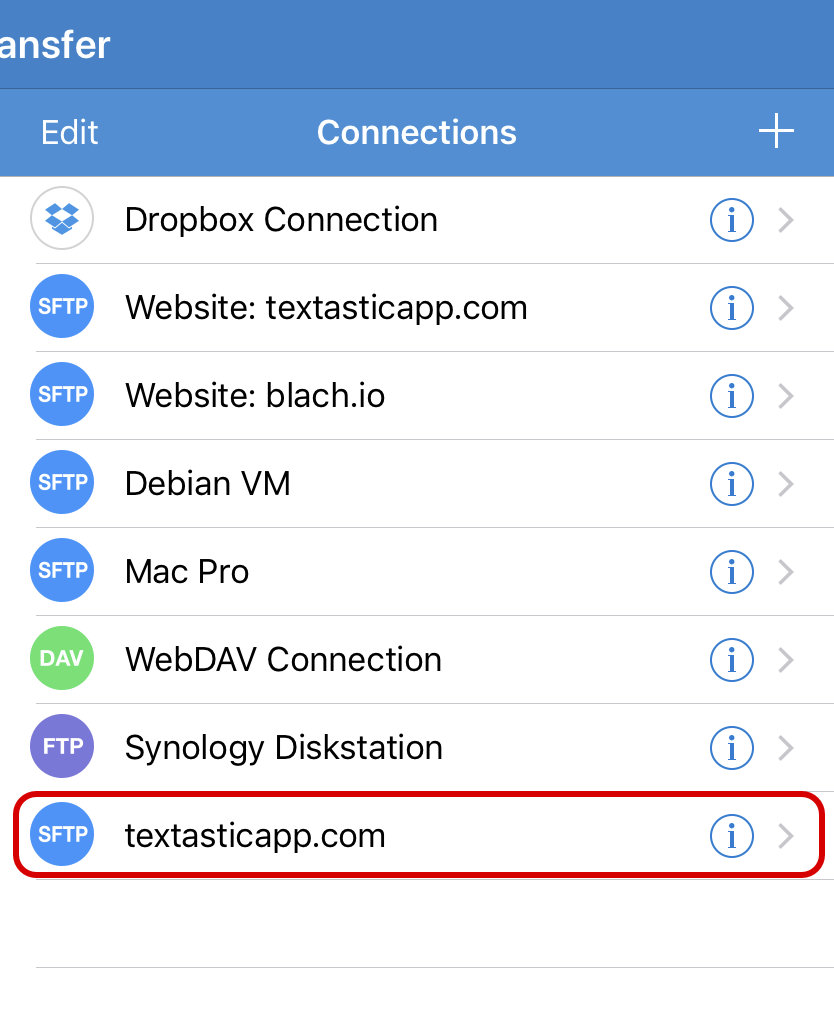
Tap the newly created connection to connect to the remote server.
Change Connection Settings
To change the settings of a connection, tap the i button on the right side of the connection.
