SSH Terminal Connections
Textastic includes a built-in SSH client and terminal emulator for connecting to remote servers. You can open SSH terminal connections in tabs and run multiple sessions at once.
Showing the List of SSH Connections
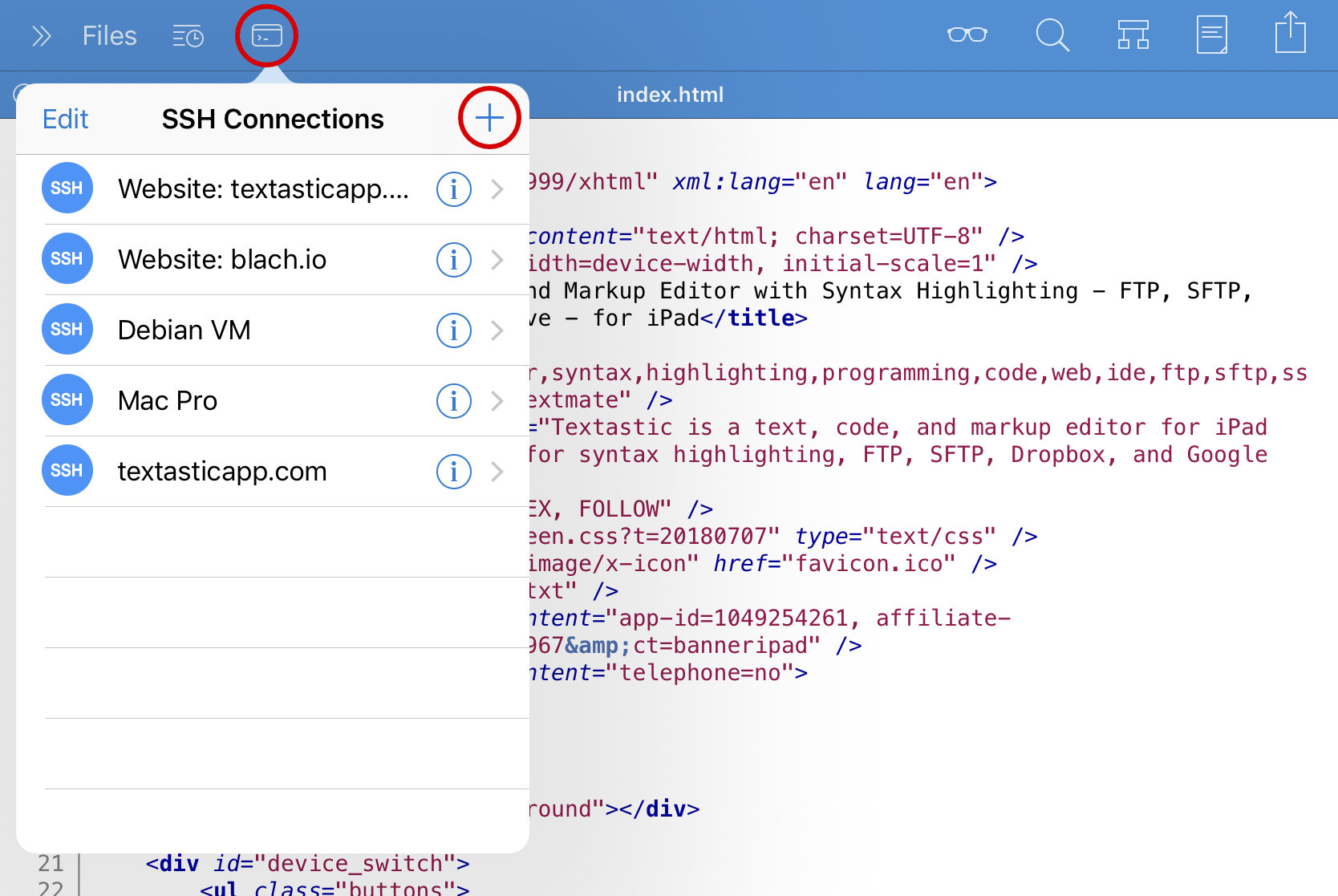
Tap the Terminal button in the top toolbar to show the list of SSH connections:

Tip
On iPadOS 26 or later, you can also select from the menu bar.
If you have already configured SFTP connections, they appear here and can be used to start an SSH terminal connection.
Adding an SSH Connection
If there is no SSH/SFTP connection yet, tap Add Connection. Otherwise, tap the + button to add a new connection.
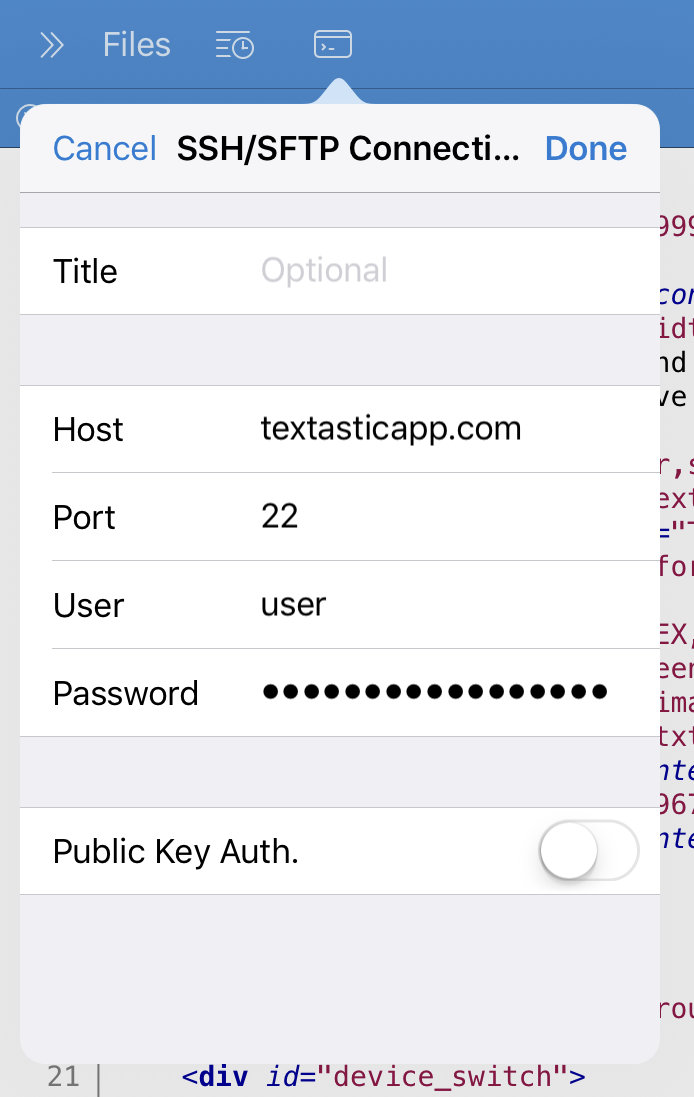
For setup details, see Configure the Connection.
Editing an SSH Connection
Tap the i button on the right side of an SSH connection to edit its configuration.
Connecting to an SSH Server
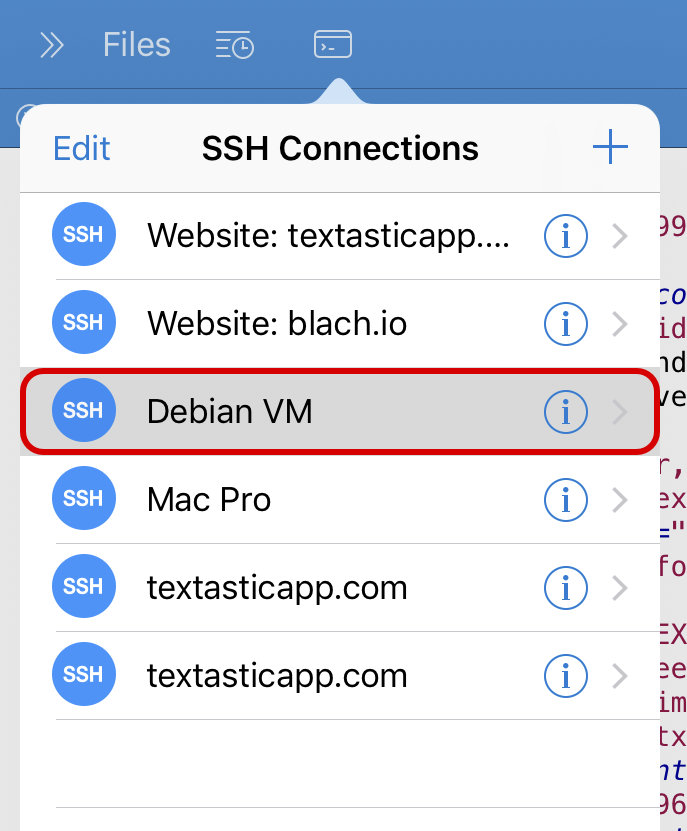
Tap an SSH connection to open a new terminal tab and connect to the server.
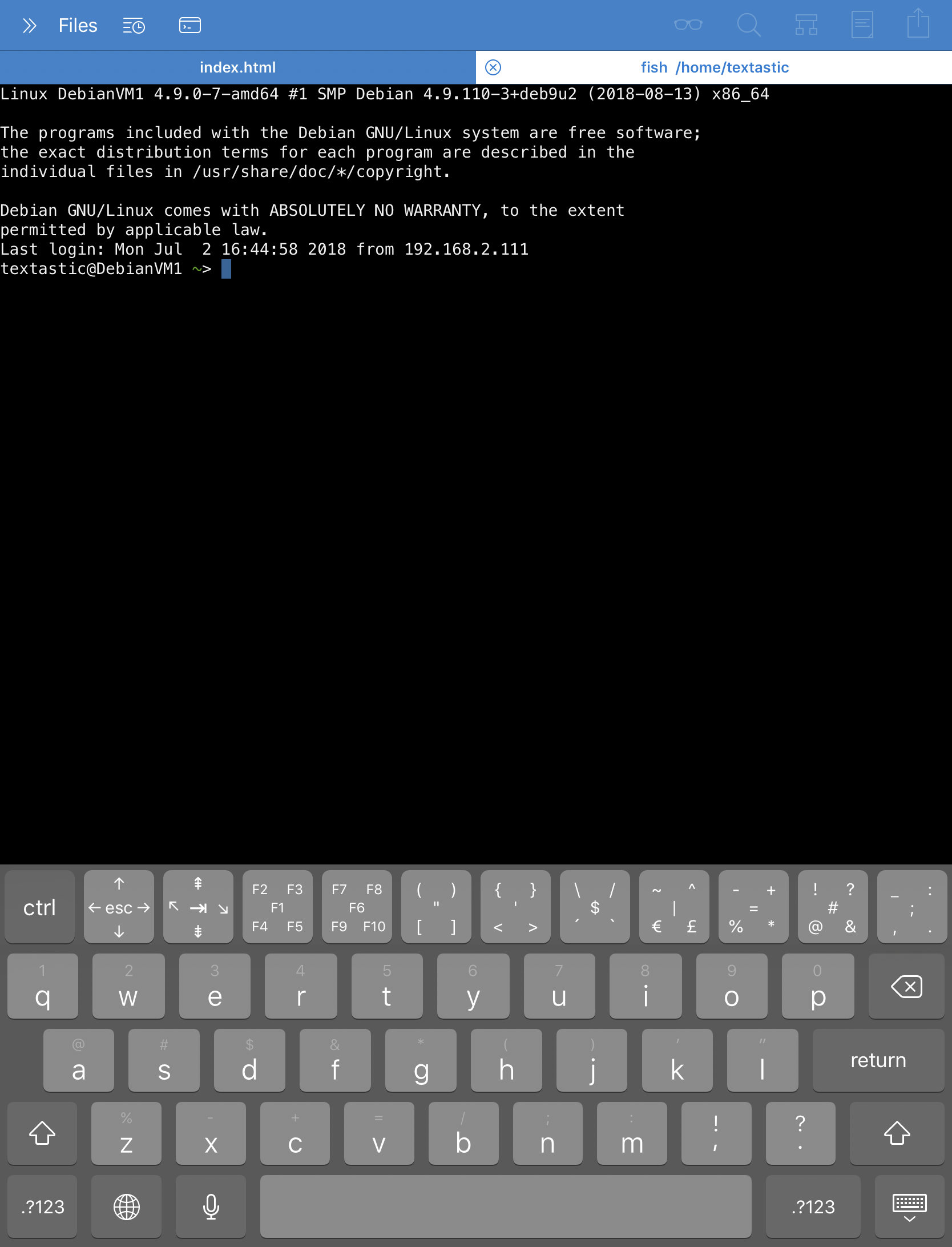
Once connected, you can use the keyboard to enter commands.
Special On-Screen Keyboard Keys
When a terminal tab is active, a special row of keys appears above the standard on-screen keyboard.

SSH keyboard row on iPad

SSH keyboard row on iPhone
To enter the character in the middle of a button, just tap the button.
To enter one of the other four characters, swipe over the button in the direction of the desired character.
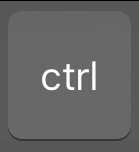 Control
Tap the ctrl key and then a regular keyboard character to send a control character. For example, press ctrl and d to send the EOT (end of transmission) character and end the SSH session.
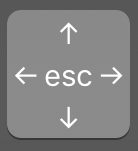 Escape and cursor keys
Tap the esc key to send the Escape character. In most cases, the Esc key also does the same thing as the Alt key.
Swipe in the direction of the arrows to send left, right, up, or down cursor commands.
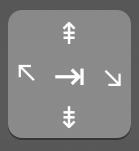 Tab, Page Up/Down, Home, End
Tap the ⇥ key to send the Tab character. Swipe left and right for Home and End. Swipe up and down for Page Up and Page Down.
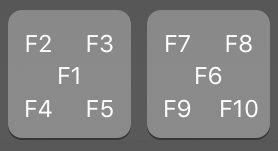 F1 to F10
Tap the F1 or F6 button or swipe in the direction of the other F-keys to send a Function key command.
 Hide keyboard
Tap the rightmost button to hide the keyboard. (iPhone only)
The remaining buttons in the top row can be used to quickly send the special characters displayed on them.
Shortcuts on an External Keyboard
The following special keys on a hardware keyboard are supported:
Tab, Escape, and Arrow keys
Control modifier key
Use Cmd and the arrow keys to send Home (Cmd-left), End (Cmd-right), and Page Up/Down (Cmd-up, Cmd-down)
Use Cmd-1 to Cmd-0 to send F1 to F10