Textastic School & Business
If your organization manages iPad or iPhone devices with Apple School Manager (ASM) or Apple Business Manager (ABM), use Textastic School & Business.

Textastic School & Business is a paid upfront version of Textastic for iPad and iPhone. It is ideal for schools and businesses using ASM/ABM to deploy apps to managed devices, and also for individual users who prefer a paid app without in-app purchases.
This version does not include in-app purchases or subscriptions, so it can be acquired and distributed through Apple’s Volume Purchase Program (VPP). It is an unlisted app, so it is not searchable in ASM/ABM or the App Store. Use the direct App Store link to access it.
Highlights:
One-time upfront purchase (no in-app purchases required).
Same feature set as the regular Textastic app.
Educational institutions purchasing 20 or more licenses through Apple School Manager may be eligible for a 50% discount.
Important
App Store link: Get Textastic School & Business
Why a Separate App Is Needed
The regular Textastic app uses in-app purchases.
Apple School Manager and Apple Business Manager do not support in-app purchases, so a separate app is required for managed school/business deployments.
How to Purchase and Deploy in Apple School/Business Manager
Textastic School & Business is an unlisted app and cannot be found via normal search in ASM/ABM. Instead:
Sign in to ASM or ABM: Apple School Manager or Apple Business Manager.
In the sidebar, open Apps and Books.
Paste this direct App Store URL into the search field and press Enter: https://apps.apple.com/us/app/textastic-school-business/id6739220416
Select the app and purchase the required number of licenses.
Assign the app to your Mobile Device Management (MDM) server in ASM/ABM.
Deploy the app to the target devices using your MDM solution.
For general Apple purchasing guidance, see: Select and buy content in Apple School Manager.
Running Both Versions at the Same Time
Both versions can be installed at the same time, but it is recommended to keep only one version installed after migration.
Both versions share settings, making it easy to switch between them. However, settings do not sync in real time.
For example:
Remote connections and editor settings (such as font size and theme) stay consistent as long as only one app is running at a time.
If both apps are open at the same time, changes made in one app (such as creating a new remote connection) will not appear in the other app until restart.
To avoid inconsistencies, always close one app before opening the other.
Switching from the Regular App
If your organization installed the regular Textastic app through ASM/ABM, switch to Textastic School & Business to continue using Textastic on managed devices.
Move Local Files before removing the regular app
Important
Deleting an app also deletes that app’s Local Files folder.
Before uninstalling the regular Textastic app, move required files to:
the Textastic School & Business Local Files folder, or
another location, for example iCloud Drive.
How to identify the correct Local Files folders:
Open the Files app on your device.
Navigate to On My iPad or On My iPhone.
If both apps are installed, you will see two folders named
Textastic: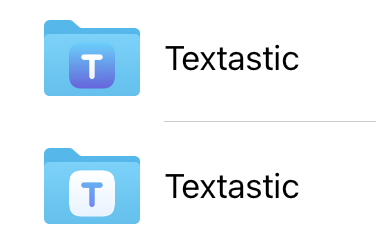
Regular app folder icon: (top) white “T” on blue background.
School & Business folder icon: (bottom) blue “T” on white background.
Move files from the folder used by the regular app to the folder used by Textastic School & Business.
Warning
If you skip this step, files stored in the regular app’s Local Files folder are permanently lost when that app is removed.
Remove the regular app after file transfer
After moving your Local Files, uninstall the regular Textastic app from managed devices.
Deleting One of the Apps
You can safely delete one of the apps if you have moved all Local Files you want to keep.
Deleting an app deletes that app’s Local Files folder.
iCloud files, remote connections, and shared settings are not deleted.
If you need assistance, contact support: support@textasticapp.com.