Adding Custom Syntax Definitions, Themes, and Templates
Textastic supports custom syntax definitions and themes, including Sublime Text 3 packages, TextMate 1-compatible .tmbundle bundles, and .tmTheme theme files.
Custom templates appear in the file creation dialog.
Create the “#Textastic” Folder
Go to the Local Files root folder
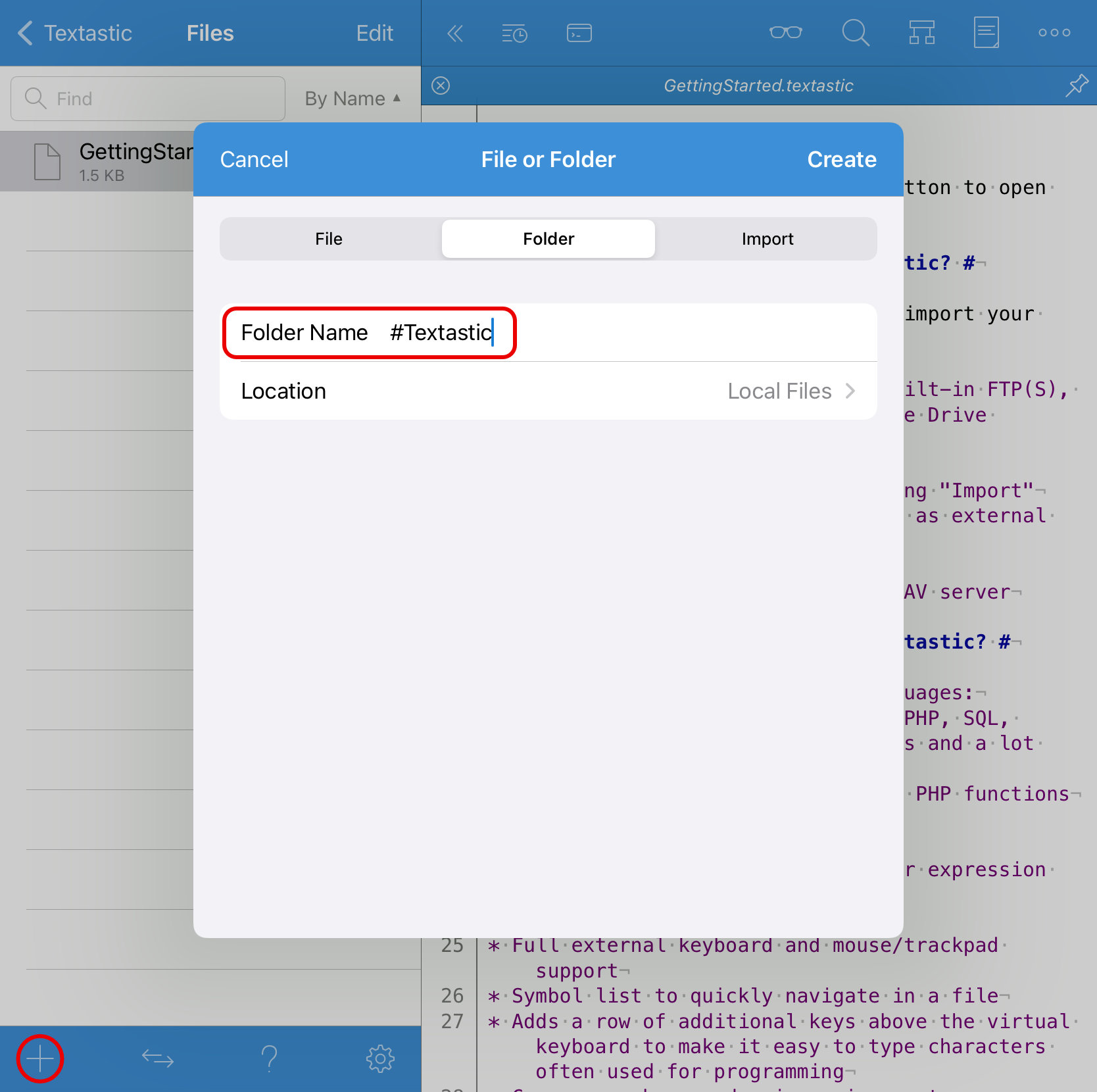
Tap the + button in the bottom toolbar
Choose Folder and enter
#Textasticas the Folder NameTap Create
Important
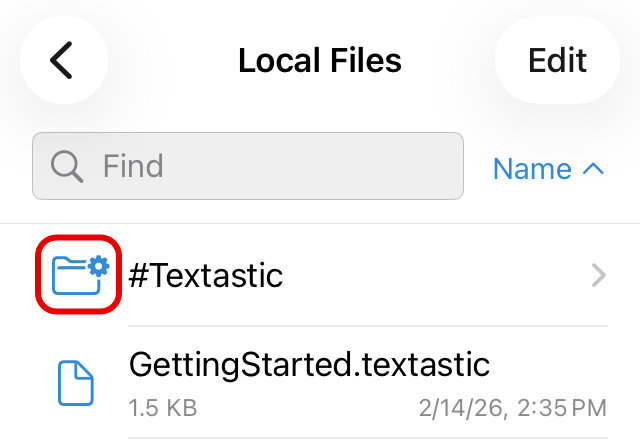
The folder must display the icon shown below. The name “#Textastic” is case-sensitive.
Add Custom Syntax Definitions and Themes
Move your Sublime Text 3 packages, TextMate bundles, and theme files into the newly created folder (see Moving, Copying, and Renaming Files and Folders).
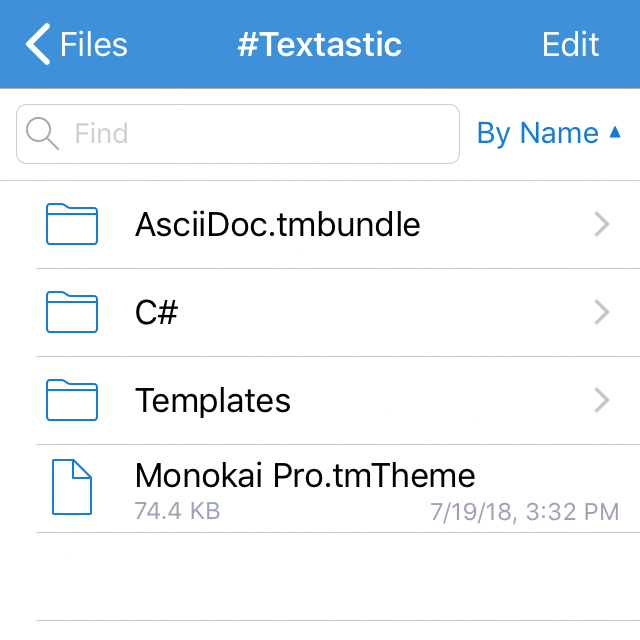
Sublime Text 3 packages are folders without an extension.
TextMate bundles are folders with a
.tmbundleextension.Theme files use the
.tmThemeextension.Template files use the
.jsonextension.
Example: Download a Syntax Definition from GitHub
Many third-party syntax definitions are available on GitHub as Sublime Text 3 packages or TextMate 1 bundles. You can find them by searching for <language> Sublime Text using a web search engine.
To install one:
Open the GitHub repository in Safari on your iPad or iPhone.
Tap the green Code button and choose Download ZIP.
Unzip the downloaded file in the Files app. This creates a folder containing the syntax files.
Optionally rename the folder to match the language name.
Move or copy this folder into
On My iPhone/Textastic/#Textastic/orOn My iPad/Textastic/#Textastic/. This is the same asLocal Files/#Textasticinside Textastic.Reload customizations (see Reload Customizations).
Note
Syntax definitions from GitHub are third-party contributions and are not maintained by Textastic.
Reload Customizations
After adding syntax definitions, themes, or code completions, reload customizations to make them available:

Tap the Settings button (gear icon) in the bottom toolbar.
Tap Other.
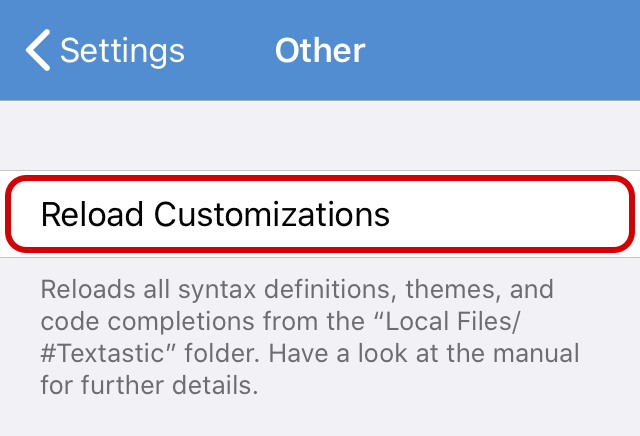
Tap Reload Customizations to reload all syntax definitions, themes, and code completions.
All open files in Local Files/#Textastic are automatically saved before reloading.
Hint
You can also invoke “Reload Customizations” using the customizable keyboard shortcut Cmd-Shift-R.
For example, edit a theme or code completion file and press Cmd-Shift-R on an external keyboard to instantly save and reload it.
After reloading, you can select the new syntax in File Properties. Added themes appear in code editor settings.
Adding Custom Templates
You can also add custom templates that appear in the file creation dialog:
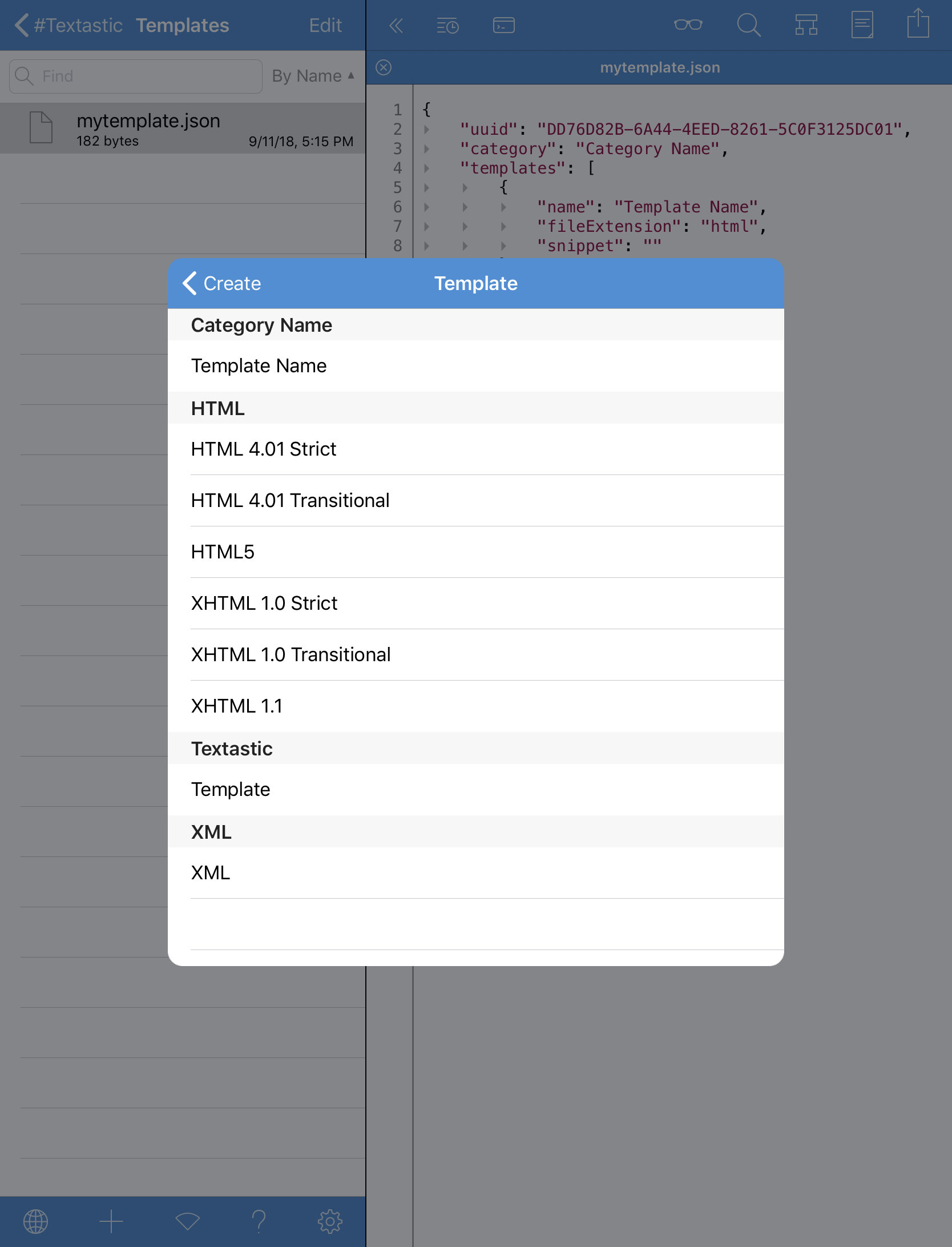
See the Textastic-Customization GitHub page for details and example files.